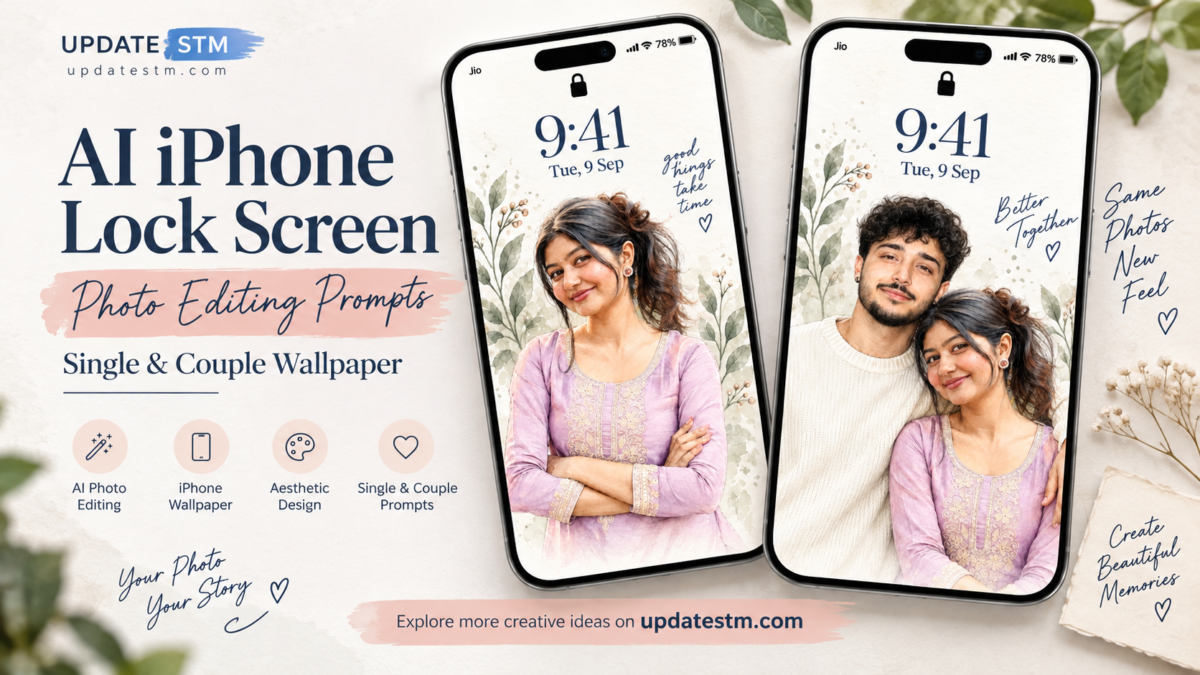
AI iPhone Lock Screen Photo Editing Prompts – Single & Couple Wallpaper
Most of us look at our phone lock screen dozens of times a day, yet many people still use the default wallpaper or a random photo from the gallery. Lately, more people are turning their own photos into soft, artistic wallpapers with AI image tools, and the results can look surprisingly polished.
The idea is simple. You take an ordinary portrait, run it through an AI editor with the right prompt, and get a clean watercolor or colored-pencil style illustration. It can even be laid out like a real iPhone lock screen, with space for the clock and notifications.
In this article, you’ll find two ready-to-use prompt ideas, one for a single girl and one for a couple. You’ll also find a step-by-step process and some practical tips to get better results.
What Is the AI iPhone Lock Screen Photo Trend?
This trend is about turning a personal photo into a stylized wallpaper made for a phone screen. Instead of a plain photo, the AI redraws it in a hand-painted look, usually with soft colors, gentle shading and visible pencil or brush texture.
What makes it popular is that it feels personal. A stock wallpaper can belong to anyone, but a wallpaper made from your own photo, or a photo of you and your partner, feels like yours.
The layout matters too. Good lock screen designs keep the face and upper body in a visible area while leaving room at the top for the time and date. This is why the prompts below are written specifically for a vertical phone format.
Single Girl iPhone Lock Screen AI Prompt
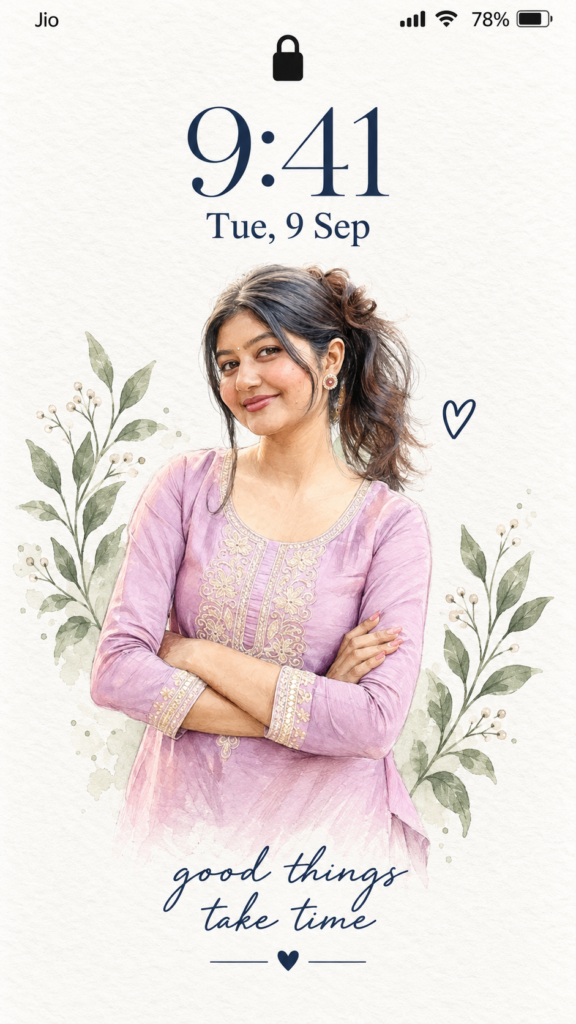
This prompt is meant for solo portraits. It works best when you have one clear photo of a person and want a calm, artistic wallpaper that still looks like her. The style is soft and clean, so it suits both casual and elegant photos.
Use the uploaded photo as the exact identity and
appearance reference. Create a realistic iPhone
lock screen wallpaper in a soft, minimalist,
hand-drawn watercolor and colored-pencil
illustration style.

IMPORTANT:
Preserve the person's exact face, facial features,
skin tone, hairstyle, hair color, smile, body
proportions, clothing, jewelry, and original pose
from the uploaded photo. Do not change the
person's identity or make them look like someone
else. The final illustration must clearly resemble
the original uploaded photo.

BACKGROUND:
Use a clean, bright warm-white paper background
with very subtle texture and minimal vintage grain.
The background must look almost white, not dark
cream or beige.

LOCK SCREEN DESIGN:
- Realistic iPhone status bar at the top.
- Show Jio, signal bars, Wi-Fi icon, 78% battery.
- Add a black lock icon.
- Large elegant serif clock: 9:41.
- Date below: Tue, 9 Sep.

PORTRAIT:
Place the person in the lower-middle section.
Keep the original clothing, hairstyle, face,
and pose from the uploaded photo.
Create a detailed, natural hand-drawn portrait
with realistic facial features and subtle
watercolor textures.

DECORATION:
Add delicate hand-drawn sage-green leafy branches
on both sides of the portrait.
Add a small navy-blue heart outline beside the
person.

BOTTOM TEXT:
good things
take time

Below the text, add a small horizontal line
and a tiny blue heart.

STYLE:
Premium minimalist iPhone wallpaper.
Bright white background, navy blue, white,
brown, and sage-green accents.
Natural face likeness, detailed hand-drawn
illustration, subtle paper grain, balanced
composition, elegant Instagram aesthetic.

Aspect ratio: 9:16
High resolution, vertical iPhone wallpaper.
What kind of result can you expect?
If your photo is clear, you can expect a wallpaper-style illustration with a soft watercolor or colored-pencil finish. The overall look is usually gentle and tidy, with smooth color blending and a portrait framed for a vertical screen.
The face, hairstyle and outfit are generally based on your uploaded photo, but the level of accuracy depends on the AI tool you use. Some tools stay very close to the original, and others take more creative freedom. It’s normal to generate a few versions before you find one you like.
Couple iPhone Lock Screen AI Prompt
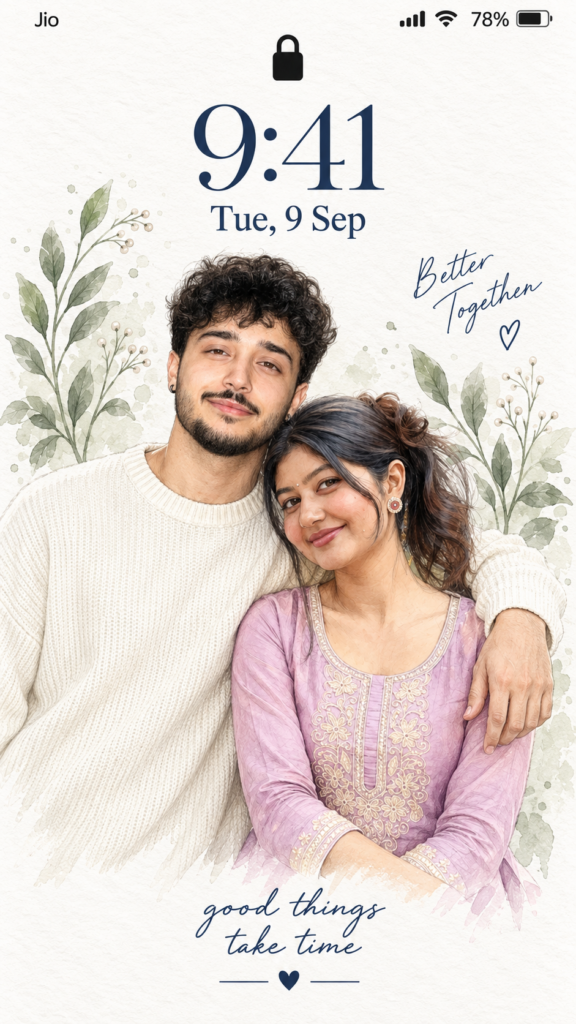
The couple version is built for photos of two people, such as partners, newly married couples or anyone who wants a matching wallpaper style. Placing two people in one frame is harder than one, so this prompt is written to keep both faces balanced and easy to recognize.
Use the two uploaded photos as the ONLY identity and appearance references for the couple.

Create an ultra-detailed realistic iPhone lock screen wallpaper in a soft, minimalist hand-drawn watercolor and colored-pencil illustration style.

IDENTITY — VERY IMPORTANT:
Preserve both people's exact facial identity and natural appearance from their respective uploaded photos.

MAN:
Keep his exact face, facial structure, eyes, eyebrows, nose, lips, skin tone, curly black hairstyle, beard, moustache, earring, body proportions and natural expression. Keep his original cream/white knitted sweater.

WOMAN:
Keep her exact face, facial structure, eyes, eyebrows, nose, lips, skin tone, hairstyle, hair color, smile, earrings, small bindi, body proportions and original lilac/pastel-purple embroidered traditional outfit.

Do not beautify, reshape, age, replace, or mix their facial features. Both people must clearly resemble their individual reference photos.

COUPLE POSE:
Place the man on the left and woman on the right, close together in a natural affectionate couple pose.
The woman gently rests her head near his shoulder/chest.
The man has one arm naturally around her shoulder.
Both face the camera with soft, relaxed smiles.
Keep realistic body proportions and natural hand placement.

BACKGROUND:
Clean bright warm-white paper background with very subtle paper texture and minimal vintage grain.
Background should appear almost white, not yellow, beige, or dark.

LOCK SCREEN:
Realistic minimalist iPhone lock-screen layout.
Top left: Jio
Top right: signal bars, Wi-Fi icon, 78% battery
Small black lock icon centered above the clock.
Large elegant navy-blue serif clock: 9:41
Below clock: Tue, 9 Sep

PORTRAIT:
Place the couple in the lower-middle portion of the wallpaper.
Detailed hand-drawn faces with accurate likeness.
Soft watercolor shading mixed with fine colored-pencil details.
Natural skin texture and facial proportions.
Clothing should retain its original texture, embroidery and colors.

DECORATION:
Add delicate hand-painted sage-green leafy branches and tiny white flowers around both sides of the couple.
Keep decorations minimal and elegant.
Add a small navy-blue outlined heart near the couple.

Add small handwritten text:
“Better Together”
with a tiny heart.

BOTTOM TEXT:
good things
take time

Below the text add a thin horizontal line, a tiny navy-blue heart in the center, and another thin horizontal line.

COLOR PALETTE:
Bright warm white, navy blue, soft lilac, cream, natural brown and muted sage green.

STYLE:
Premium minimalist iPhone wallpaper, romantic but subtle, elegant Instagram/Pinterest aesthetic, realistic watercolor portrait, delicate pencil linework, soft natural shading, subtle paper grain, balanced composition, clean negative space, highly detailed faces.

NO:
No face swapping between the two people, no facial distortion, no different hairstyles, no different clothes, no extra people, no extra fingers, no deformed hands, no heavy makeup, no cartoon/anime look, no plastic skin, no dark background, no excessive flowers, no text errors, no watermark.

Aspect ratio: 9:16
High resolution, vertical iPhone lock-screen wallpaper.
What kind of result can you expect?
This version is designed to keep both people recognizable while creating a coordinated lock-screen wallpaper. You should see both faces treated in the same illustrated style, with matching colors and a balanced composition, so neither person looks out of place.
Group and couple photos are trickier for AI tools. One face may come out sharper than the other, or small details like a smile or hairstyle may shift. If that happens, regenerating usually helps, and so does starting with a cleaner photo where both people are clearly visible.
How to Create This AI Lock Screen Photo
The process is straightforward. Here’s how to do it from start to finish:
- Choose a clear photo. Pick a portrait where the face is well lit and easy to see. For the couple version, both people should be clearly visible in the same frame.
- Upload it to a compatible AI image generator or editor. Use a tool that supports image uploads along with text prompts. Not every tool handles this the same way, so check that yours allows photo-based editing.
- Copy the appropriate prompt. Use the single prompt for a solo photo and the couple prompt for two people. Paste it in exactly as written first, and make changes later if needed.
- Generate the image. Wait for the result and look at it on a larger screen if you can, since small flaws are easier to spot that way.
- Check facial details and regenerate or edit if necessary. Look closely at the eyes, smile, hairstyle and skin tone. No AI tool can promise a perfect face match every time, so a second or third attempt is common.
- Save the final image and set it as your wallpaper. Download the version you like, open it in your iPhone’s Photos app, and use the Share option to set it as your wallpaper.
Tips for Better Results
A few small habits can improve the output a lot:
- Use a clear, high-resolution photo. More detail gives the AI more to work with. A sharp photo almost always beats a compressed one.
- Pay attention to lighting. Soft, even light works best. Harsh shadows across the face can confuse the tool and change how features look.
- Keep facial features visible. Avoid sunglasses, heavy filters, or hair covering the eyes. The clearer the face, the better the likeness.
- Avoid heavily blurred photos. If the original is blurry, the AI will guess the missing details, and those guesses may not look like you.
- Prefer portrait (vertical) photos. Since a phone wallpaper is vertical, a portrait-oriented photo needs less cropping and fits naturally.
- Check text, clock and UI details. If the design includes a clock, date or lock screen elements, look at them carefully. AI image generators often produce wrong numbers, odd letters or distorted icons. If the text looks off, you can ignore it, since your iPhone will show the real clock and date on top anyway.
- Adjust the crop on your phone. After setting the wallpaper, use the pinch and drag options to reposition it. Make sure the face isn’t hidden behind the clock or widgets.
Single vs Couple Lock Screen – Which Prompt Should You Use?
The choice mostly comes down to your photo and what you want on your screen.
Go for the single prompt if you have a good solo portrait and want a personal, minimal wallpaper. It’s also the easier of the two to get right, because the AI only has to focus on one face.
Choose the couple prompt if you want a shared look with your partner. It’s a nice fit for anniversaries, wedding memories or matching wallpapers on both your phones. Just keep in mind that it needs a photo where both people are clearly visible, and it may take a few more attempts to get both faces looking right.
If you’re new to this, start with the single version to get a feel for how your chosen AI tool behaves. Once you know how it handles faces and style, the couple version becomes much easier to work with.
Final Words
AI lock screen wallpapers are a simple way to give your phone a personal touch, whether it’s a solo portrait or a picture with someone special. The key is starting with a good photo, being patient with the results and making small edits until it feels right.
If you’d like to try more ideas, you can explore other AI photo editing prompts and creative editing ideas on Update STM. Try the prompts above, tweak them to suit your own photos, and make the wallpaper your own.