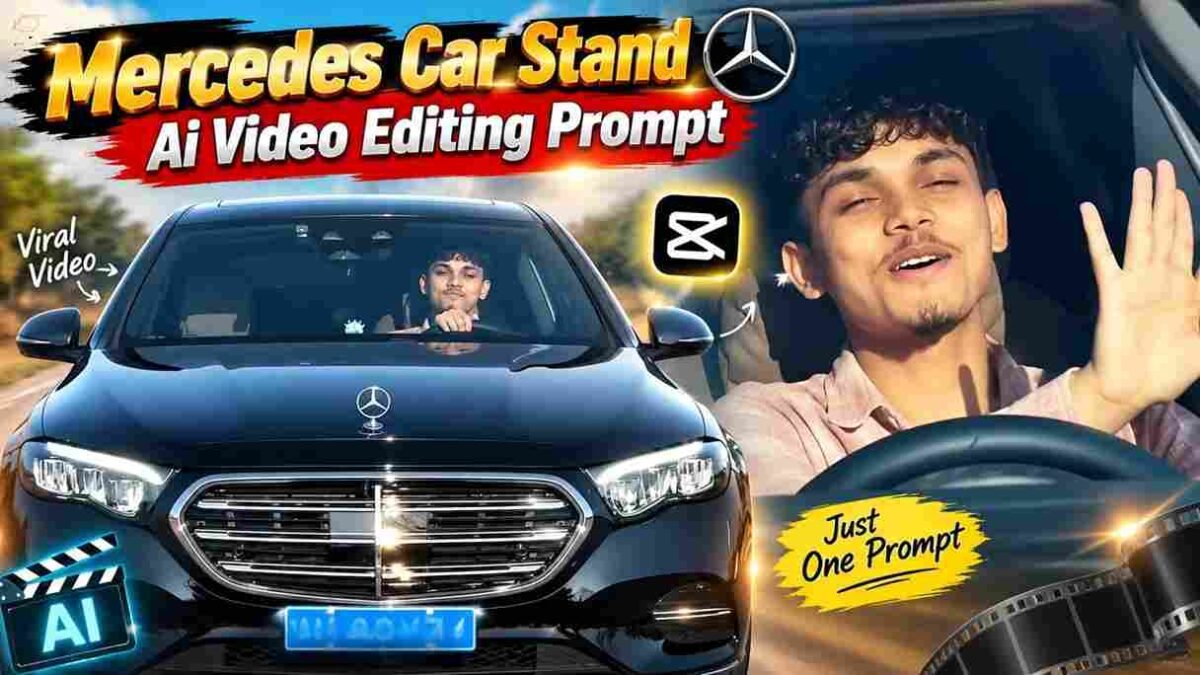
Mercedes Car Stand AI Video Editing Prompt – Create Viral Video Using Google Flow
A short clip of a person standing beside a glossy black luxury sedan, then opening the door and sitting behind the wheel, has become a popular AI video idea on social media. It looks like a small car commercial, but it can be made from a single photo and a well-written prompt.
In this guide, you’ll learn what the trend is, how to prepare your photo, how to use the prompt in Google Flow, and how to fix common problems. There’s also a second prompt for a night-time version.
What Is the Mercedes Car Stand AI Video Trend?
The trend usually follows one simple story. A person stands confidently next to a premium black sedan on a roadside, the camera moves slowly closer, and the person then gets into the driver’s seat. The whole thing is styled like a luxury car advertisement.
The car in these videos is usually described as “Mercedes-style” because AI tools generate a car from a description. The result may resemble a Mercedes sedan, but it won’t always match a real model exactly, and that’s normal.
Why This AI Car Video Style Is Trending
A few reasons make it catchy. The setting looks expensive, the camera movement feels cinematic, and the person in the video is you, which makes it fun to share.
It’s also easy to repeat. You don’t need a car, a camera crew or editing skills. You only need a clear photo and a good prompt. That said, no prompt can promise your video will go viral. Good visuals help, but reach depends on many other things.
What You Need Before Creating the Video
- A clear portrait or full-body photo. The face should be sharp and well lit. A photo where you’re standing works best, since the video starts with a standing shot.
- Visible clothing and posture. The AI needs to see what you’re wearing if you want it to stay the same.
- Optional car reference. If your Flow workflow lets you add more than one reference, a clear photo of a black sedan can help keep the car’s shape consistent.
- Access to Google Flow. Availability, plans, usage limits and features can differ by region and may change, so check what your account currently offers.
- Permission. Use your own photo, or someone else’s only with their clear consent.
Mercedes Car Stand AI Video Editing Prompt
This prompt is written for a photo-based video workflow like the ones Google Flow offers. It describes the identity, the car, the camera movement and the things to avoid.
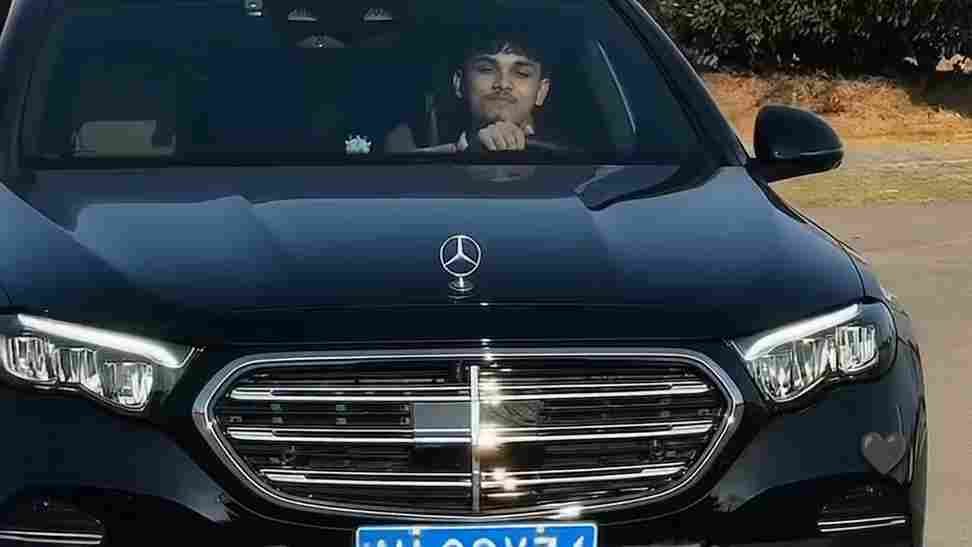
Create an ultra-realistic cinematic video of the same young man sitting naturally in the driver's seat of a black luxury Mercedes car. Keep his face exactly consistent with the reference photo, including facial features, hairstyle, skin tone and light beard. He looks naturally toward the side, smiles slightly, then looks forward while keeping one hand naturally on the steering wheel. Realistic human movement, natural blinking, subtle head movement and breathing. Show authentic car interior, steering wheel and dashboard. Camera slowly moves from a close front windshield view toward a slightly closer side angle. Realistic windshield reflections and tinted glass, natural daylight, accurate shadows, realistic skin texture, shallow depth of field, cinematic color grading, 4K, highly photorealistic, no face distortion, no extra fingers, no warped hands, no artificial-looking face. Match the reference video's camera movement, framing, lighting, pacing and natural facial expressions. Make it look like a real camera-recorded video, not Al-generated.
You can customize it easily. Change the clothing (“wearing a white shirt and dark jeans”), the car color, the location (a hill road, a city street, a beach road) or the camera move (slow push-in, gentle side track). Change one thing at a time so you can see what made the difference.
Note: Generation tools may not follow every instruction, and “no watermark” in a prompt doesn’t guarantee a watermark-free result. Watermark and export rules depend on the tool and your plan.
How to Create Mercedes Car AI Video Using Google Flow
Google Flow’s layout and options can change, so the steps below are kept general. Use the labels you see on screen.
- Open Google Flow and sign in with your Google account.
- Start a new project for video generation.
- Add your reference image if the workflow you’re using supports image input. Otherwise, describe the person in the prompt as clearly as you can.
- Paste the prompt into the prompt field.
- Choose the available video options. Look at settings like model, aspect ratio and number of outputs. Vertical is usually better for Reels and Shorts.
- Generate the clip.
- Review the result. Check the face, hands, clothing, car shape and movement.
- Regenerate or adjust the prompt. Shorten it, simplify the action or fix the specific problem you noticed.
- Download the final video using whichever export options your account currently shows.
Best Prompt Settings for a Realistic Result
- Start with a clear reference image. This matters more than any wording trick.
- Describe the character the same way each time. If you write “black jacket” in one clip, don’t write “dark coat” in the next.
- Keep lighting realistic. Soft sunlight or golden hour usually looks more natural than dramatic mixed lighting.
- Use simple camera movements. One slow push-in is easier for AI than a fast orbit around the car.
- Avoid too many actions in one short clip. Standing, walking, opening the door and sitting down in one clip is a lot to ask.
- Split complex scenes into multiple clips. For example, make clip one the standing shot and clip two the interior shot, then join them in a video editor.
- Keep the car description consistent. Repeat the same color, body type and setting across clips.
How to Make the Video Look More Cinematic
Small details make an AI video feel like a real ad.
- Camera movement: Ask for slow and smooth movement, like a gentle push-in or slight side glide.
- Golden-hour light: Warm, low sunlight gives the black paint nice highlights.
- Reflections: Mention “glossy reflections on the car body” so the paint doesn’t look flat.
- Depth of field: A softly blurred background keeps attention on the person and car.
- Natural movement: Ask for small details such as a light breeze in the clothing or a subtle head turn.
- Color grading: If the output looks too bright or oversaturated, tone it down later in a video editor.
Common Problems and How to Fix Them
Face changes
Use a sharper, front-facing reference photo and repeat the identity line in your prompt. Try a few generations, since results can vary.
Car shape changes
Simplify the car description and avoid fast camera moves. A car reference image can help if your workflow accepts one.
Incorrect hands
Reduce hand action. Instead of “opening the door and adjusting the steering wheel,” keep it to one movement, or start the second clip with hands already in place.
Unnatural movement
Shorten the action list and ask for “slow, natural movement.” Overloaded prompts often make motion look stiff or rushed.
Person changes between shots
Use the same reference image and the same clothing description for every clip. Keep the wording nearly identical.
Background changes
Describe the location once in detail and repeat it in each clip, including time of day and lighting.
Alternative Mercedes AI Video Prompt
Here’s a night-time version with a moodier look. Try it once the daytime version works for you.
Frequently Asked Questions
What is the Mercedes Car Stand AI Video Editing Prompt?
It’s a text prompt used to generate a short cinematic video of a person standing next to a black luxury sedan, then getting into the driver’s seat. It’s designed for an AI video tool and a reference photo.
Can I create this video using Google Flow?
Yes, you can try it in Google Flow if your account has access to its video generation features. Options and availability may vary, so check what’s currently offered to you.
Do I need a reference photo?
It’s strongly recommended if you want the video to look like a specific person. Without a reference, the tool can only follow your written description, which is less accurate.
How can I keep my face consistent in the AI video?
Use a clear, well-lit, front-facing photo, keep the identity description the same across clips, and avoid complicated movement. Consistency can’t be guaranteed, so regenerate if needed.
Why does the car or face change during generation?
AI video tools create each frame from patterns rather than copying an object exactly. Long prompts, fast motion and multiple actions make changes more likely. Simple actions and shorter clips help.
Final Words
The best results come from a clear photo, a simple action and a bit of patience. Generate a few versions, note what works, and change one detail at a time.
If you enjoy this kind of content, Update STM shares AI photo and video editing prompts, tutorials and creative editing ideas that you can explore and try on your own photos.